drawsvg iconDraw-SVG user's guide
PreviousNextContentsPDFdrawsvg home

6.3. Draw regular shapes

Abstract

This chapter explains how to draw shapes from the regular section of the Shapes menu.

These shapes are parameterized (with at least the type of form, its center and radius) and calculated by constraints.

Table 6.3. Draw regular shapes

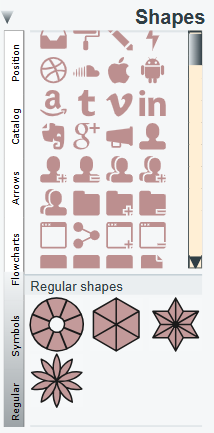
Image menu-draw-shapes-3.png
Image task-shapeWheelBtn.svg

Draw a wheel

 
Image task-shapePolyedreBtn.svg

Draw a polyhedron

 
Image task-shapeStarBtn.svg

Draw a star

 
Image task-shapeRosaceBtn.svg

Draw a rosace


6.3.1. Draw a wheel

A wheel is a regular shape defined by its center, its radius, and a number of vertices and other parameters. It is drawn as a path element with multiple outlines. The shape is calculated by a constraint.

See draw wheel showcase for an interactive demonstration.

  • Click on the wheel icon in the Shapes menu and Regular section: Image task-shapeWheelBtn.svg
  • Click the center and radius points
  • Then set the wheel parameters:

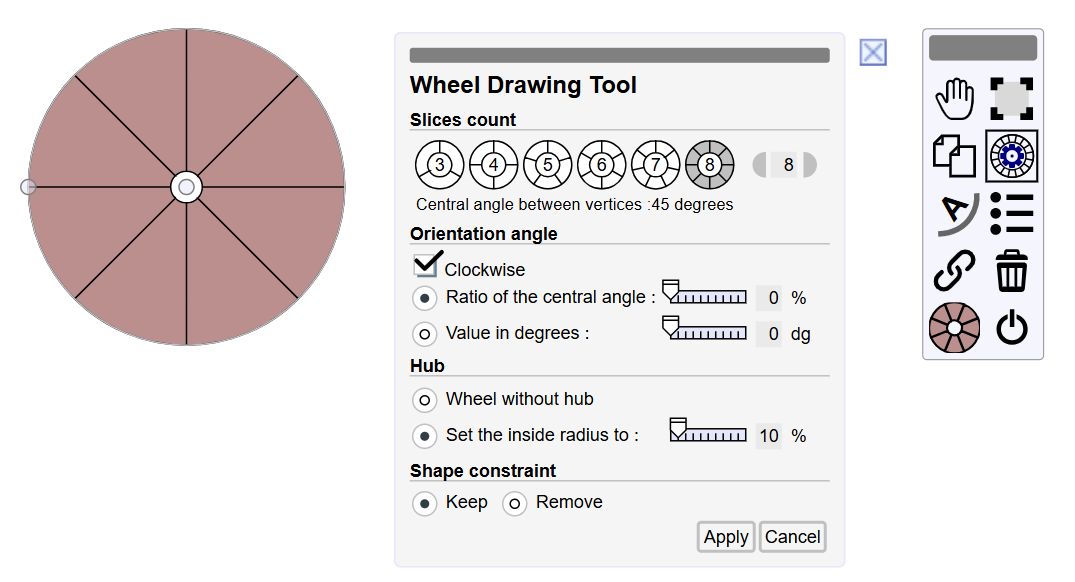
    Figure 6.7. Wheel parameters

    Wheel parameters

    • Vertices count
      • Click on the count, buttons +/-, or enter the value
    • Orientation angle
      • Check clockwise
      • Set the angle as a ratio to the central angle using the cursor or field
      • Or set the angle as degrees using the cursor or field
    • Hub
      • Select wheel without hub option
      • Or set the hub radius as a ratio to the wheel radius using the cursor or field
    • Shape constraint
      • Keep

        The element's geometry is locked (modification of points or segments is impossible)

      • Remove

        The geometry of the element becomes modifiable like any path element by default. The shape is no longer identifiable as a wheel.
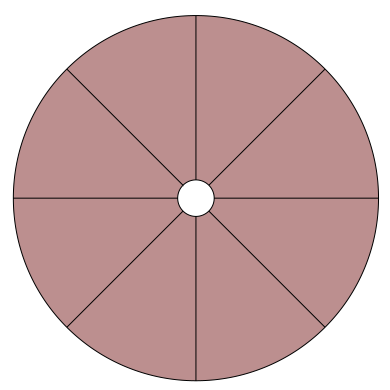
  • Set the stroke and fill style of the shape

  • Select the shape Image wheel.svg
  • Click on the Shape settings icon Image wheeledit.svg

The shape is drawn by a single path element with multiple outlines.

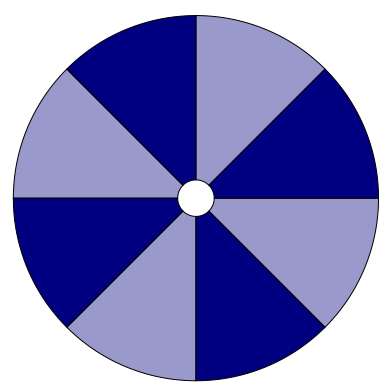
To assign a different style to each outline, it is necessary to remove the constraint and then split the path, resulting in one path element per outline:

Image wheel.svg
Image wheel-color.svg

  1. Select the shape Image wheel.svg
  2. Click on the Shape settings icon Image wheeledit.svg
  3. Select Remove Shape constraint and click Apply button
  4. Click Split path icon (expert profile) Image split-path.svg
  5. Apply Split path action
  6. Select each outline to set its fill style Image wheel-color.svg

6.3.2. Draw a polyhedron

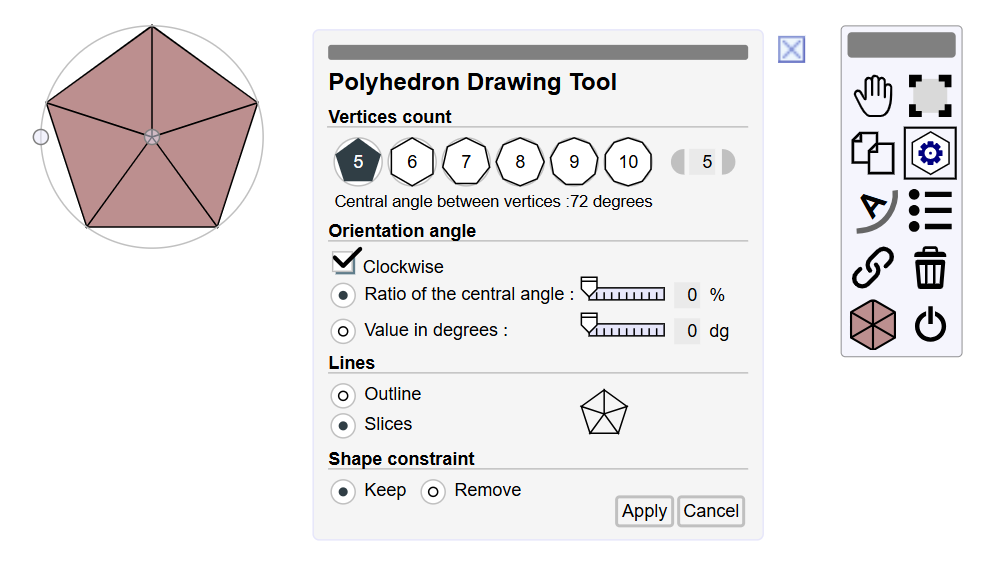
A polyhedron is a regular shape defined by its center, its radius, and a number of vertices and other parameters. It is drawn as a path element with multiple outlines. The shape is calculated by a constraint.

See draw polyhedron showcase for an interactive demonstration.

  • Click on the polyhedron icon in the Shapes menu and Regular section: Image task-shapePolyedreBtn.svg
  • Click the center and radius points
  • Then set the polyhedron parameters:

    Figure 6.8. Polyhedron parameters

    Polyhedron parameters

    • Vertices count
      • Click on the count, buttons +/-, or enter the value
    • Orientation angle
      • Check clockwise
      • Set the angle as a ratio to the central angle using the cursor or field
      • Or set the angle as degrees using the cursor or field
    • Lines
      • Select outline
      • Or slices
    • Shape constraint
      • Keep

        The element's geometry is locked (modification of points or segments is impossible)

      • Remove

        The geometry of the element becomes modifiable like any path element by default. The shape is no longer identifiable as a wheel.
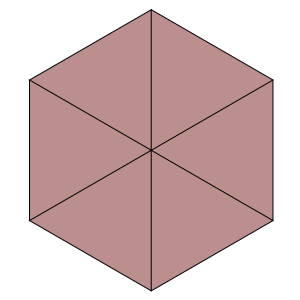

  • Set the stroke and fill style of the shape

  • Select the shape Image polyhedre.svg
  • Click on the Shape settings icon Image polyedre-edit.svg

The shape is drawn by a single path element with multiple outlines.

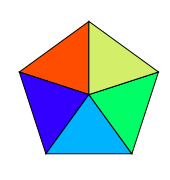
To assign a different style to each outline, it is necessary to remove the constraint and then split the path, resulting in one path element per outline:

Image polyhedre.svg
Image polyhedre-color.svg

  1. Select the shape Image polyhedre.svg
  2. Click on the Shape settings icon Image polyedre-edit.svg
  3. Select Remove Shape constraint and click Apply button
  4. Click Split path icon (expert profile) Image split-path.svg
  5. Apply Split path action
  6. Select each outline to set its fill style Image polyhedre-color.svg

6.3.3. Draw a star

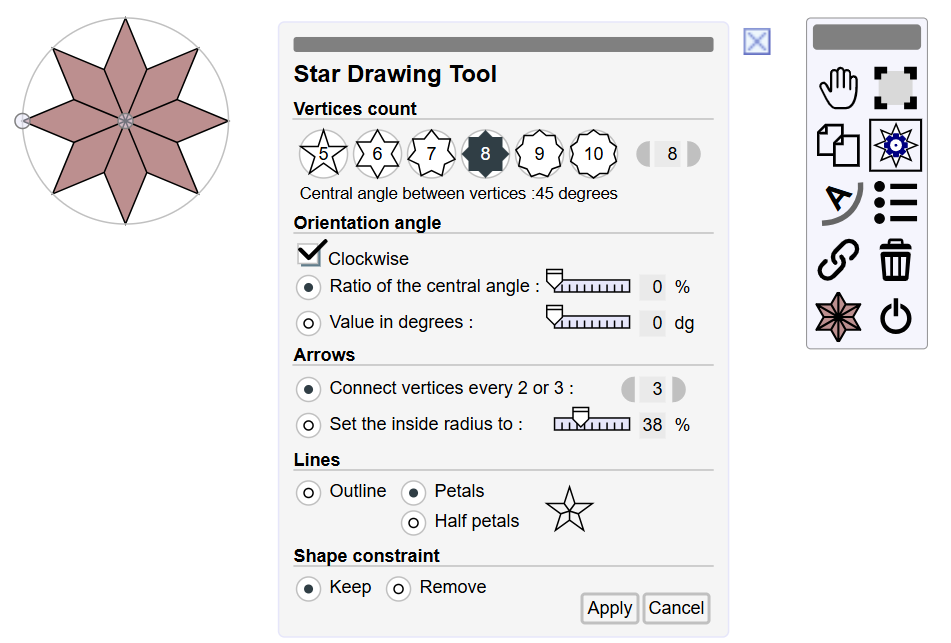
A star is a regular shape defined by its center, its radius, and a number of vertices and other parameters. It is drawn as a path element with multiple outlines. The shape is calculated by a constraint.

See draw star showcase for an interactive demonstration.

  • Click on the star icon in the Shapes menu and Regular section: Image task-shapeStarBtn.svg
  • Click the center and radius points
  • Then set the star parameters:

    Figure 6.9. Star parameters

    Star parameters

    • Vertices count
      • Click on the count, buttons +/-, or enter the value
    • Orientation angle
      • Check clockwise
      • Set the angle as a ratio to the central angle using the cursor or field
      • Or set the angle as degrees using the cursor or field
    • Arrows, select the draw arrows mode
      • Select connect vertices and set the number of vertices between connected arrows
      • Or set the inner radius as a percentage
    • Lines, select the draw lines mode
      • Outline (only one contour)
      • Petals (one contour for each vertex)
      • Half petals (two contours for each vertex)
    • Shape constraint
      • Keep

        The element's geometry is locked (modification of points or segments is impossible)

      • Remove

        The geometry of the element becomes modifiable like any path element by default. The shape is no longer identifiable as a regular star.
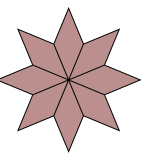

  • Set the stroke and fill style of the shape

  • Select the shape Image star.svg
  • Click on the Shape settings icon Image staredit.svg

The shape is drawn by a single path element with multiple outlines.

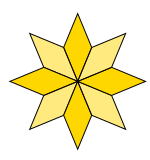
To assign a different style to each outline, it is necessary to remove the constraint and then split the path, resulting in one path element per outline:

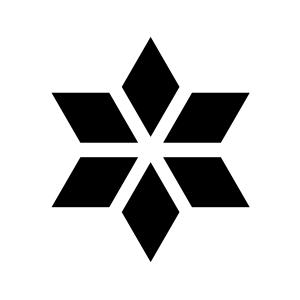
Image star.svg
Image star-color.svg

  1. Select the shape Image star.svg
  2. Click on the Shape settings icon Image staredit.svg
  3. Select Remove Shape constraint and click Apply button
  4. Click Split path icon (expert profile) Image split-path.svg
  5. Apply Split path action
  6. Select each outline to set its fill style Image star-color.svg

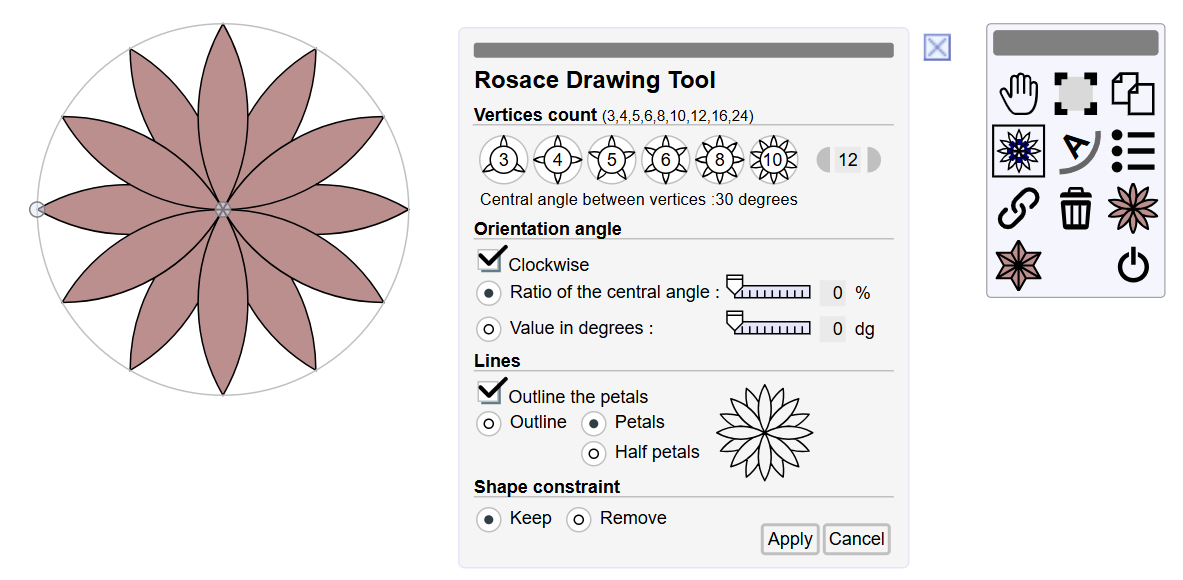
6.3.4. Draw a rosace

A rosace is a regular shape defined by its center, its radius, and a number of vertices and other parameters. It is drawn as a path element with multiple outlines. The shape is calculated by a constraint.

See draw rosace showcase for an interactive demonstration.

  • Click on the rosace icon in the Shapes menu and Regular section: Image task-shapeRosaceBtn.svg
  • Click the center and radius points
  • Then set the rosace parameters:

    Figure 6.10. Rosace parameters

    Rosace parameters

    • Vertices count
      • Click on the count, buttons +/-, or enter the value
    • Orientation angle
      • Check clockwise
      • Set the angle as a ratio to the central angle using the cursor or field
      • Or set the angle as degrees using the cursor or field
    • Lines, select the draw lines mode
      • Outline (only one contour)
      • Petals (one contour for each vertex)
      • Half petals (two contours for each vertex)
    • Shape constraint
      • Keep

        The element's geometry is locked (modification of points or segments is impossible)

      • Remove

        The geometry of the element becomes modifiable like any path element by default. The shape is no longer identifiable as a regular rosace.
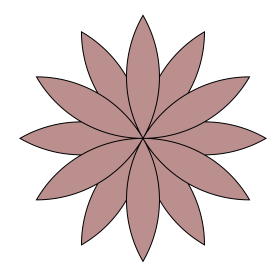
  • Set the stroke and fill style of the shape

  • Select the shape Image rosace.svg
  • Click on the Shape settings icon Image rosace-edit.svg

The shape is drawn by a single path element with multiple outlines.

To assign a different style to each outline, it is necessary to remove the constraint and then split the path, resulting in one path element per outline:

Image rosace.svg
Image rosace-color.svg

  1. Select the shape Image rosace.svg
  2. Click on the Shape settings icon Image rosace-edit.svg
  3. Select Remove Shape constraint and click Apply button
  4. Click Split path icon (expert profile) Image split-path.svg
  5. Apply Split path action
  6. Select each outline to set its fill style Image rosace-color.svg