drawsvg iconDraw-SVG user's guide
PreviousNextContentsPDFdrawsvg home

6.2. Using Shapes catalogs

Abstract

This chapter describes the use of Draw-SVG's shape catalogs.

The Shapes menu offers ready-to-use shapes and symbols, grouped into catalogs.

Table 6.2. Shapes catalogs

Image menu-draw-shapes.png
Image task-shapeCatalogBtn.svg

Draw a shape or a symbol from the shape catalog

 
Image task-emojiBtn.svg

Draw an emoji symbol from the emoji catalog

 
Image task-fontawesomeBtn.svg

Draw a Font Awesome symbol from its free catalog

 
Image task-fanimalsCatalogBtn.svg

Draw a funny animal symbol from its catalog

 
Image task-symbolCatalogBtn.svg

Draw a symbol saved in the document definitions using the symbol chooser


Each shape is a path element or a group of paths and geometric elements.

Once inserted into the document, each element of the shape is customizable (style and geometry).

A symbol is a complete drawing that is embedded in the document definitions and displayed by a use element.

Use elements have their own dimensions, orientation and default style for the symbol elements (e.g. fill and stroke for fontawesome symbol).

With the drawsvg editor you can create symbols, display them, edit them and refactor them.

How to draw a shape

To draw a shape :

  • Set drawing mode (corner or center, keep ratio or not)

  • Select it's model from the three sets (arrows, flowcharts, symbols) of the menu or from the shape catalog Image task-shapeCatalogBtn.svg

  • Draw it with two points upper left and bottom right corners

  • Then defines its style properties fill and stroke

Image shapes.png

See draw shapes showcase for an interactive demonstration.

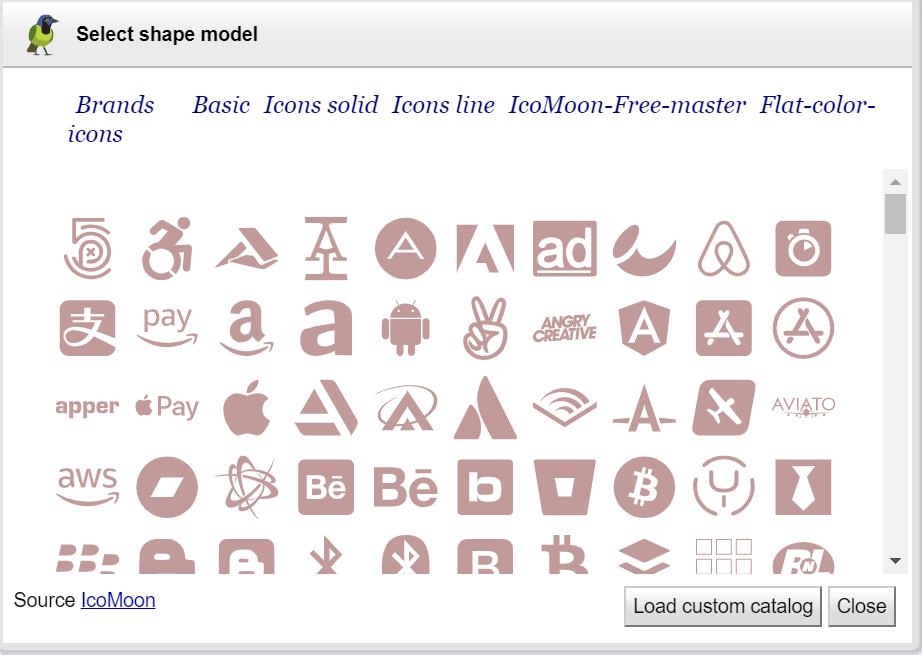
Figure 6.1. Shape catalog

Shape catalog

The shape catalog provide a lot of models from IcoMoon free to use.

Custom catalog can be added with custom shape catalog tool .

How to draw a symbol

To draw a symbol :

  • Select a symbol from a catalog in the shapes menu :

    Image task-shapeCatalogBtn.svg ico-moon color icons , Image task-emojiBtn.svg emoj , Image task-fontawesomeBtn.svg Font Awesome symbol , Image task-fanimalsCatalogBtn.svg funny animal

    or select an existing symbol from the document with the chooser Image task-symbolCatalogBtn.svg

  • Then draw the upper left and bottom right corners of the symbol

Image draw-symbols.svg

See draw emoji , font Awesome icon , funny animal showcases for an interactive demonstrations.

Symbol catalogs

DRAW-SVG provides several symbol catalogs:

  • Ico-moon catalog
  • Emoji catalog
  • Font Awesome catalog
  • Funny animal catalog
  • Document catalog

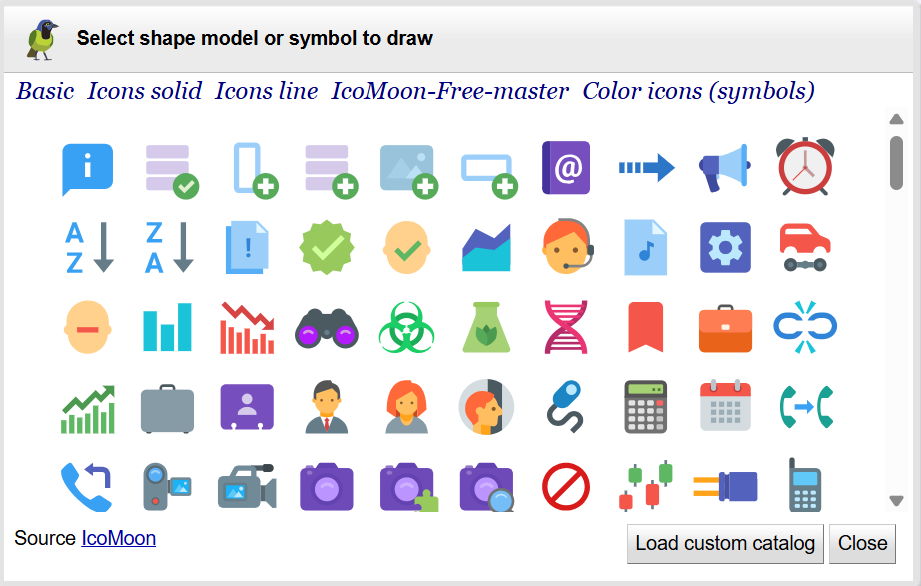
Figure 6.2. IcoMoon free color icons

IcoMoon free color icons

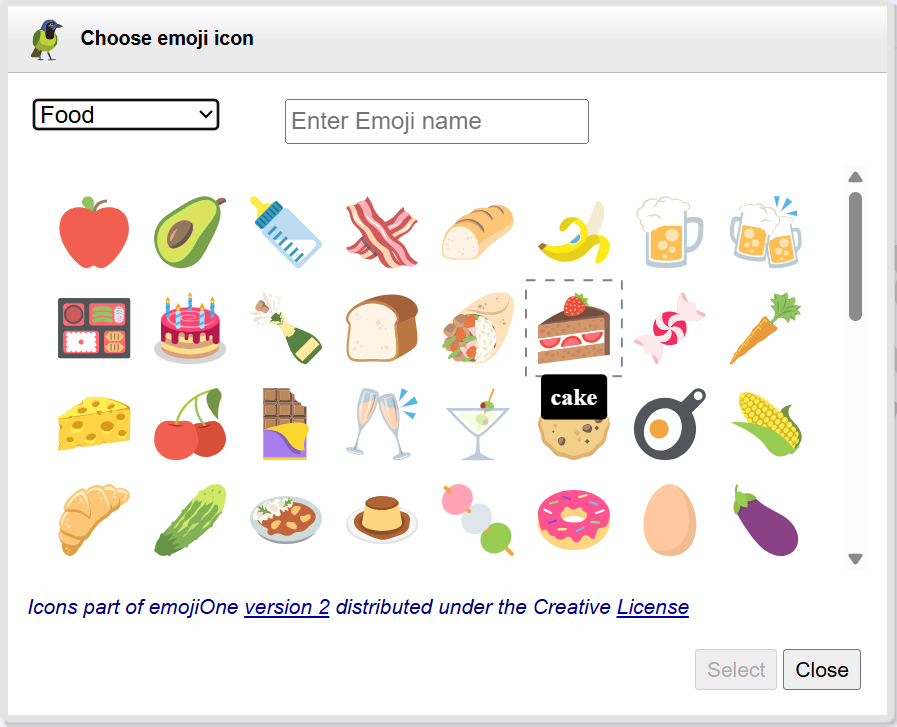
Search and select an emoji by category or name sourced from emojOne

Figure 6.3. Emoji chooser

Emoji chooser

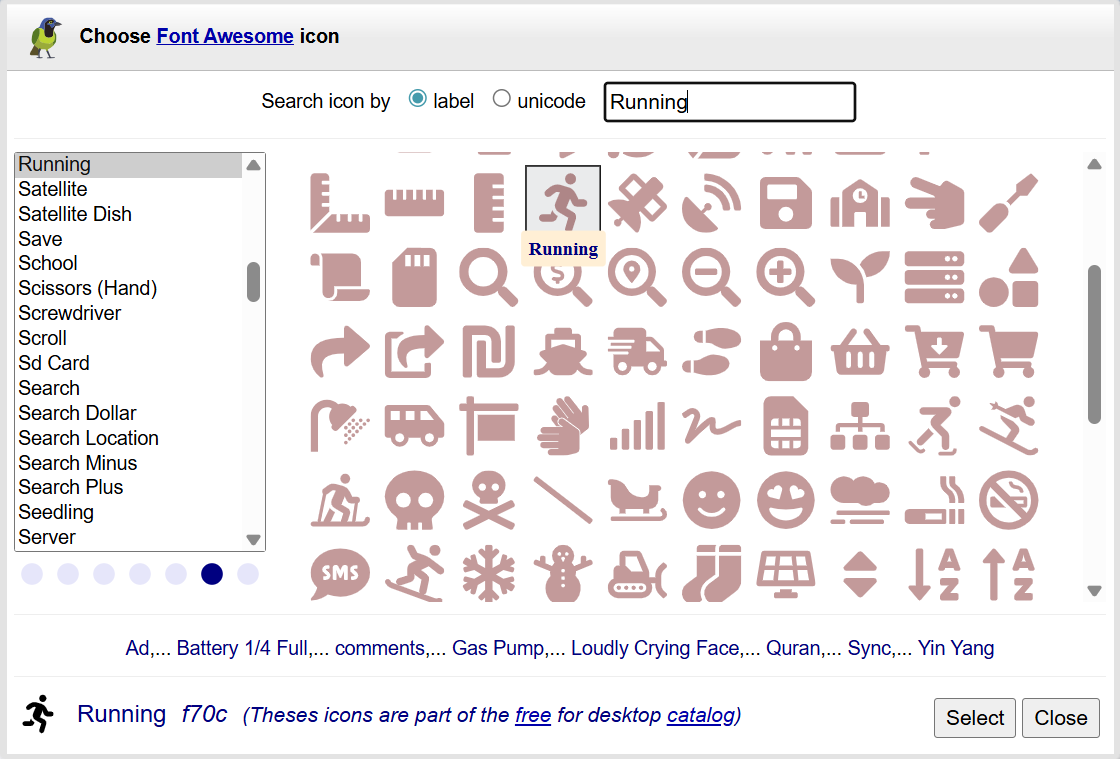
Search and select a Font Awesome icon from the free desktop catalog.

Set the fill and stroke properties of the use element to customize the symbol display.

Figure 6.4. Font Awesome icon chooser

Font Awesome icon chooser

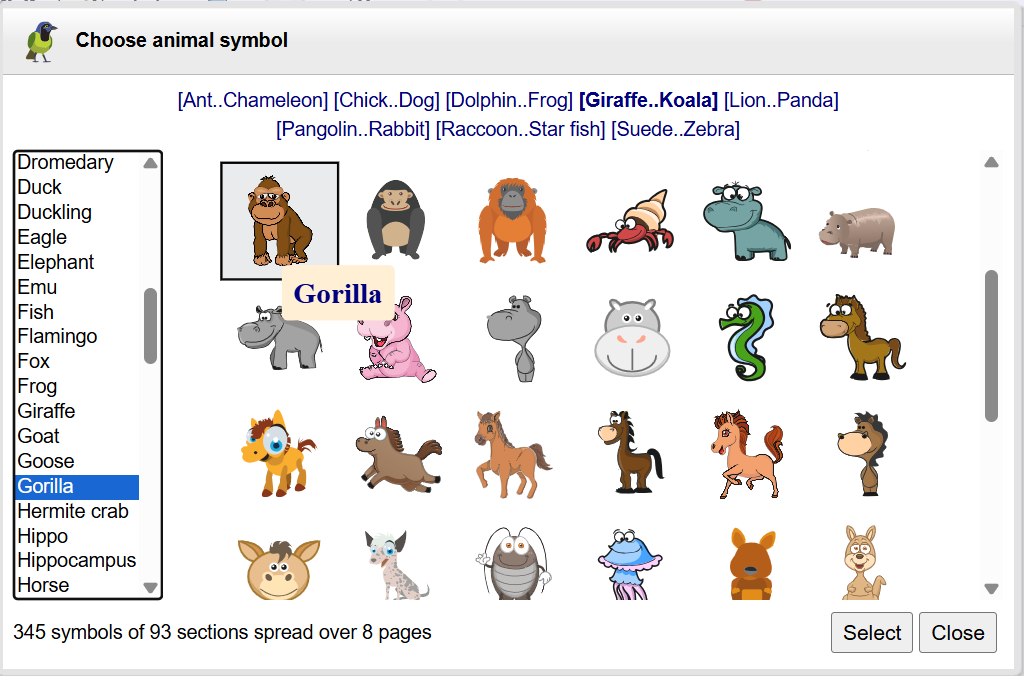
Search and select a funny animal symbol over 300 drawings free to use.

Select a section, the first symbol in it is selected, then click on the preferred symbol.

Or click on a page link, then click on the preferred symbol.

Click the Select button to draw it.

Figure 6.5. Funny animal symbol chooser

Funny animal symbol chooser

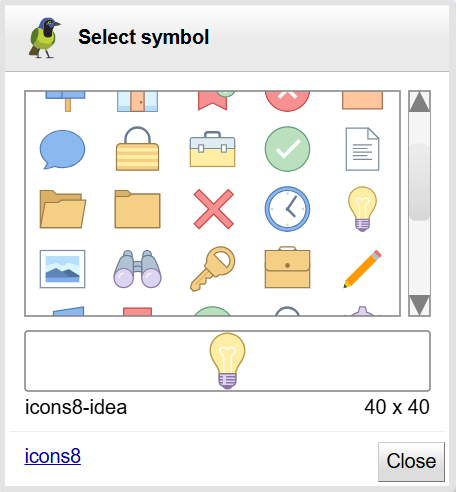
This catalog lists the symbols defined in the document, along with some additional symbols from icons8 .

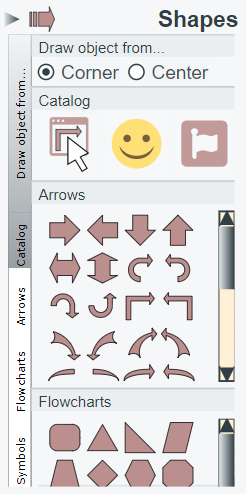
Figure 6.6. Symbol chooser

Symbol chooser